Posts

Showing posts with the label Microsoft Dynamics Nav

Import a .CSV file for Bank Reconciliation in Business Central
Image
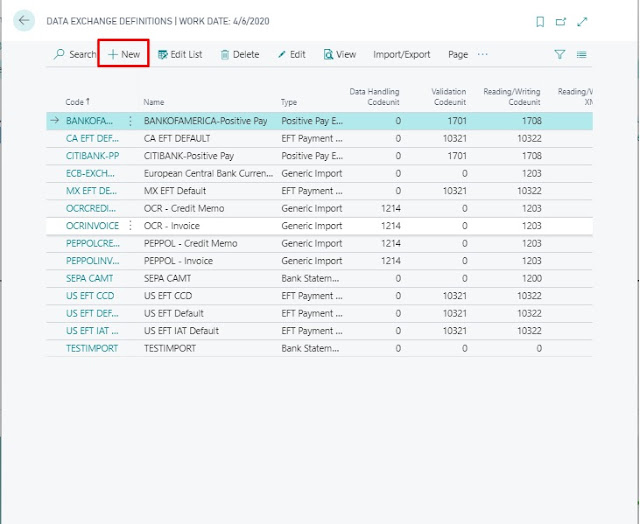
Introduction: This blog will guide you in importing a .CSV file for Bank Reconciliation. Pre-requisites: Dynamics 365 Business Central Steps: Step 1:  Search for Data Exchange Definition in  Tell me/Search Icon and open it, Create a new Data Exchange Definition and enter the code and name. Step 2: In the new Data Exchange Definition add the following fields. File Type - Variable Text Type - Bank Statement Import Reading/Writing Xml Port - 1220 Ext Data Handling Codeunit - 1240 You can also add the number of Header lines that are present in .CSV file in the Header Lines field. I have one Header Line so I have put 1. Step 3: In the Line Definitions Tab, enter the Code and Number of Columns that are present in the .CSV file. I have 7 columns so I've put them accordingly. Step 4: In Column Definitions put Name of Columns according to your .CSV file and their Data type as well. Step 5: Now click the Field Mapping Action on Line D...

How to retrieve a Sub-string from a String

Image
Problem Statement : We have a requirement where the client wants a part of String from Sales Order No. which is Code(Data type) and it is auto-generated from Number Series. The Sales Order No. value is "SO/123/789/456". The required Sub-string was: 123<Space>789. Pre-requisites: VS Code AL Language Extension Microsoft Dynamics NAV /  Business Central Solution: As per the requirement, we need to first retrieve Sub-strings "123" and "789" and this can be achieved using SELECTSTR( ) function. But SELECTSTR() only retrieves a Sub-string from a comma-separated String. And the Sales Order No. string is a slash-separated string. So firstly we need to convert this string to comma-separated string, which is achieved in the below-presented screen. CONVERTSTR(String, From Characters, To Characters)   In the above Screen, "SalesOrder No." is initialized in a text variable "SoNumber" and then is converted to a comma-sep...